Background Remover

Image

Upload 1 image

Credits: -
Cost: 2 ⚡
Explore Examples

Background Remover

Illustrative preview
Veo3 Tools

AI Background Remover for Transparent Images

Remove the background from a photo with Veo3 and download a transparent PNG. Create clean cutouts of products, portraits and objects for new layouts.

Remove Your Image Background
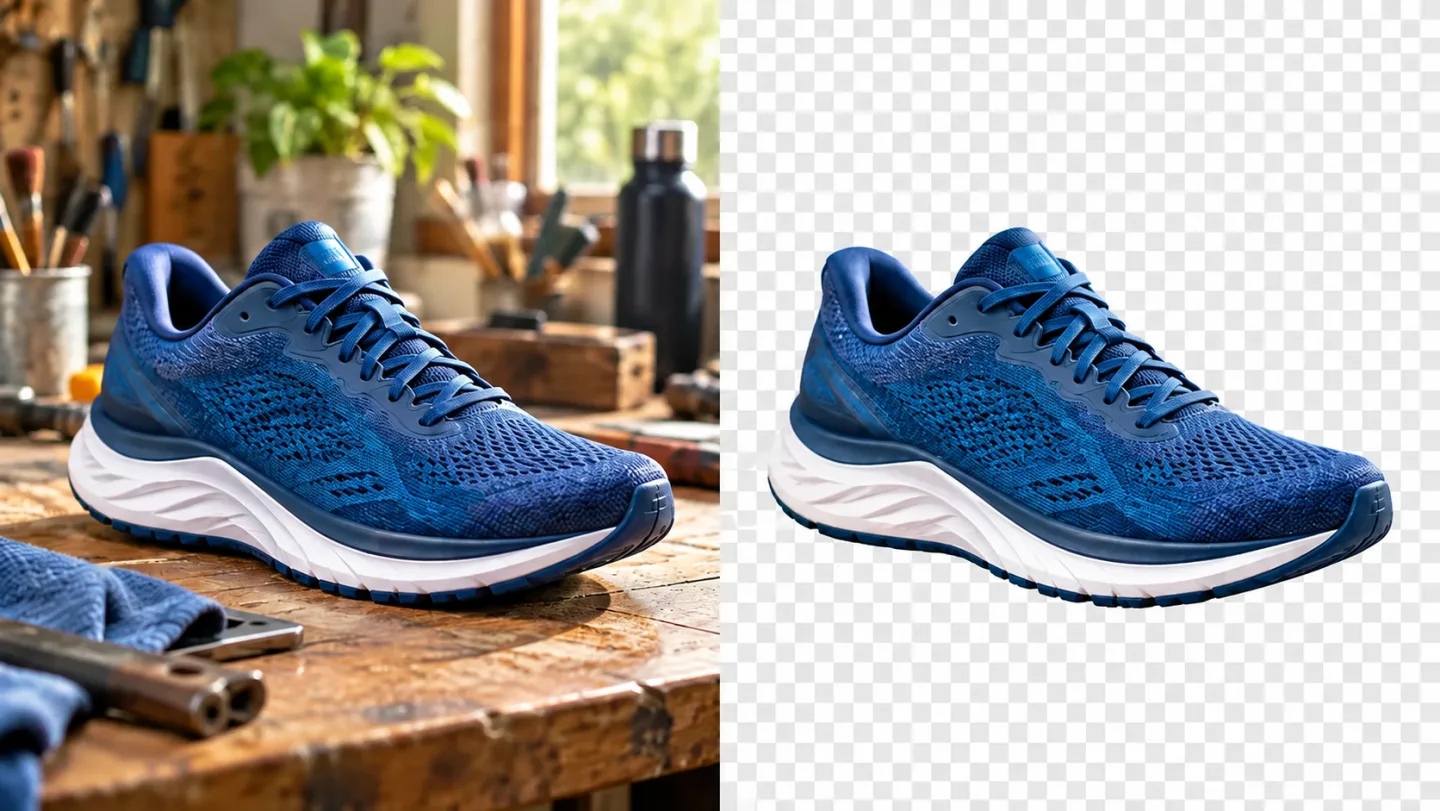
Side-by-side same blue running shoe on a busy wooden workbench then isolated on a subtle gray checkerboard to symbolize background removal.
AI-generated illustration. Actual results depend on your source and settings.

What You Can Do with AI Background Remover for Transparent Images

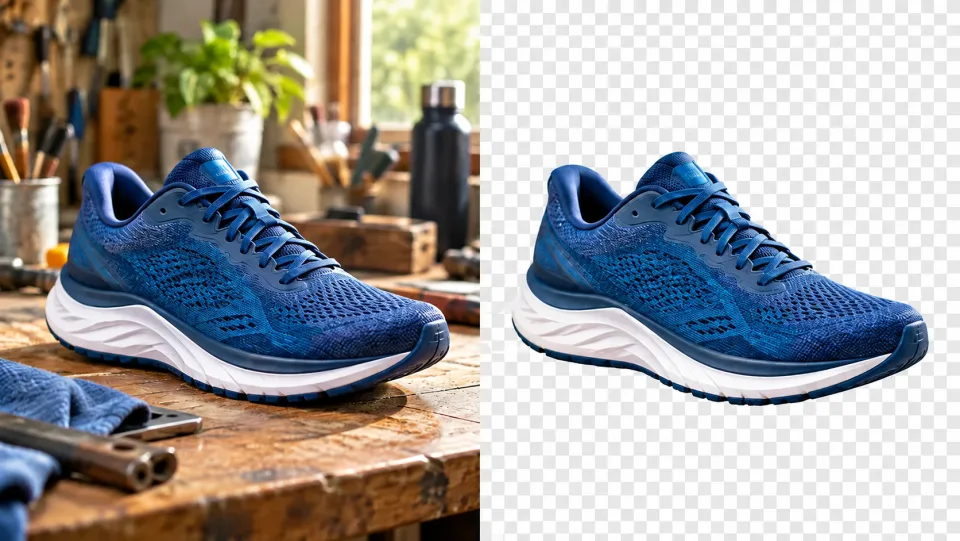
Side-by-side same blue running shoe on a busy wooden workbench then isolated on a subtle gray checkerboard to symbolize background removal.

Give Your Product Its Own Space

A transparent cutout lets a product sit inside different layouts without bringing its old surroundings along. Start with a sharp photograph, remove the background and inspect the outline before placing the PNG in a catalog or promotional design.

Remove Your Image Background
Studio cutout of a curly-haired woman portrait with delicate hair against subtle gray checkerboard; photo-real face.

Create a Portrait Cutout for Any Layout

A portrait cutout can become part of a profile layout or event graphic. Fine hair and low-contrast clothing need a careful edge check. Preview the result over both light and dark colors before choosing the final background.

Remove Your Image Background
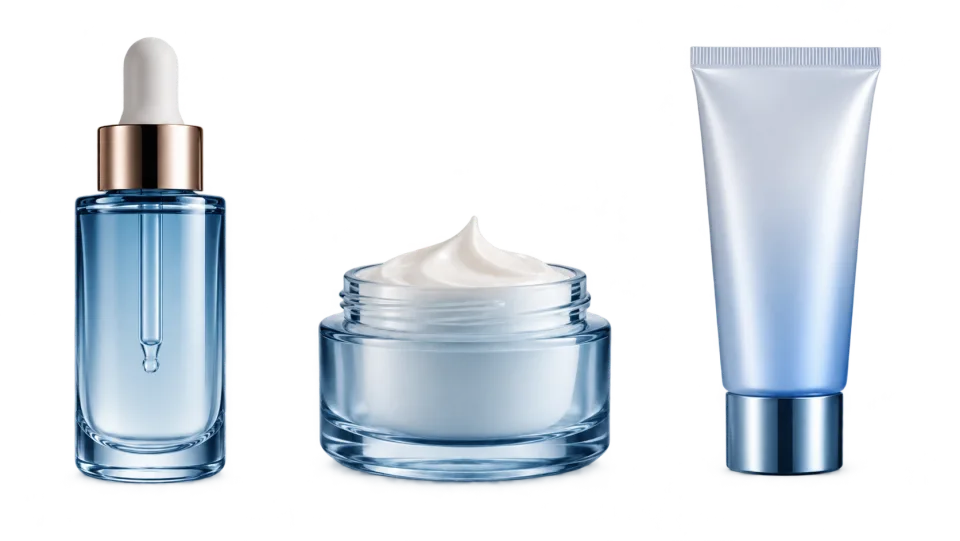
Three cosmetics containers isolated with space between them on subtle checkerboard; no logos or labels.

Start a Consistent Product Collection

Photos from different shoots need not share the same original backdrop. Process them one at a time and bring the cutouts into a consistent layout. Match scale, spacing and lighting in your editor rather than assuming automatic alignment.

Remove Your Image Background
A graphic designer workstation with clean product cutouts and blue advertising compositions on screen, no legible text.

Build New Compositions from a Clean Cutout

Transparency helps when you have not decided on the final composition. Move the subject over color blocks, photos or shapes in your editor. Download as PNG to retain transparent areas instead of flattening onto a fixed white background.

Remove Your Image Background

AI Background Remover for Your Next Project

Online store owner preparing a terracotta table lamp listing while reviewing its clean background-free cutout on a laptop.Store Owners

Prepare Listing Assets

Create a product cutout for a listing layout. Check edges around handles, laces and reflective materials before final export.

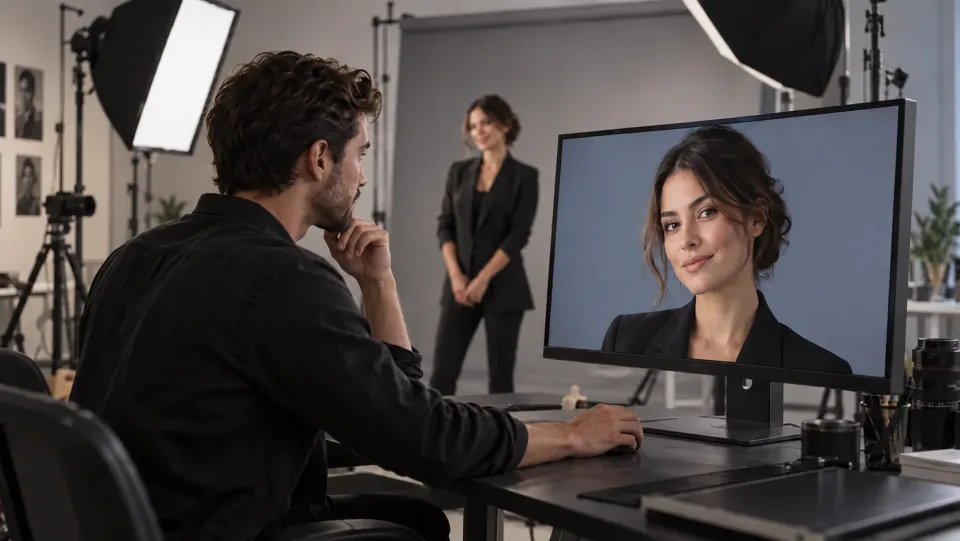
Portrait professional reviewing a polished headshot on a studio monitor while the subject stands near the backdrop.Professionals

Build a Profile Composition

Isolate a portrait for a portfolio or introduction slide. Pick a new setting that works with the existing light on the face.

Marketing team reviewing a campaign composition built around an isolated turquoise water bottle and bold color shapes.Marketing Teams

Adapt a Subject to New Campaigns

Use the PNG in layouts with different colors and spacing. Preserve an original reference so product details remain easy to verify.

Graphic designer using a stylus to refine detailed mask edges around curly hair and translucent glass.Graphic Designers

Spend More Time on Composition

Start with an AI-assisted cutout and refine masks where needed, particularly around soft hair, glass and translucent objects.

How to Use AI Background Remover

  1. 1

    Choose Your Source

    Upload one clear image with the subject you want to keep.

  2. 2

    Set Up and Generate

    Check the credit cost and generate the background removal.

  3. 3

    Review and Download

    Review the edges and download the transparent PNG for your next design.

AI Background Remover: Common Questions

What does AI Background Remover do?

Remove the background from a photo with Veo3 and download a transparent PNG. Create clean cutouts of products, portraits and objects for new layouts.

Is the removed background transparent or white?

This tool requests a transparent background. Download the PNG to preserve transparency; a white background is a different effect available in White Background Maker.

Can it remove backgrounds around hair or glass?

AI can help with fine edges, but translucent materials and low contrast can be difficult. Use a sharp source photo and inspect the cutout before placing it on a new background.

How do I get started?

Upload one clear image with the subject you want to keep. Check the credit cost and generate the background removal. Review the edges and download the transparent PNG for your next design.

How much does it cost on Veo3?

This tool uses your Veo3 credits. Check the cost shown in the generator before submitting; the amount depends on the model and settings. Your existing Veo3 plan and credit balance apply.

Are the examples measured results from this tool?

The examples below are AI-generated illustrations of possible uses, not measured outputs from this tool. Your result depends on the source image and generation settings.

What should I check before using the result?

Compare the output with your original at full size. Inspect faces, text, edges and important details, and make sure you have the rights to edit and publish the image.

View Veo3 pricing →

Keep the Subject. Open Up the Possibilities.

Upload your image, review the result, and keep the version that works for your next project.

Remove Your Image Background