Photo Restoration

Image

Upload 1 image

Credits: -
Cost: 1 ⚡
Explore Examples

Photo Restoration

Illustrative preview
Veo3 Tools

AI Photo Restoration: Bring Old Photos into Focus

Restore old photos online with Veo3. Reduce scratches, fading and visible damage while creating a clearer digital copy of a treasured photograph.

Restore an Old Photograph
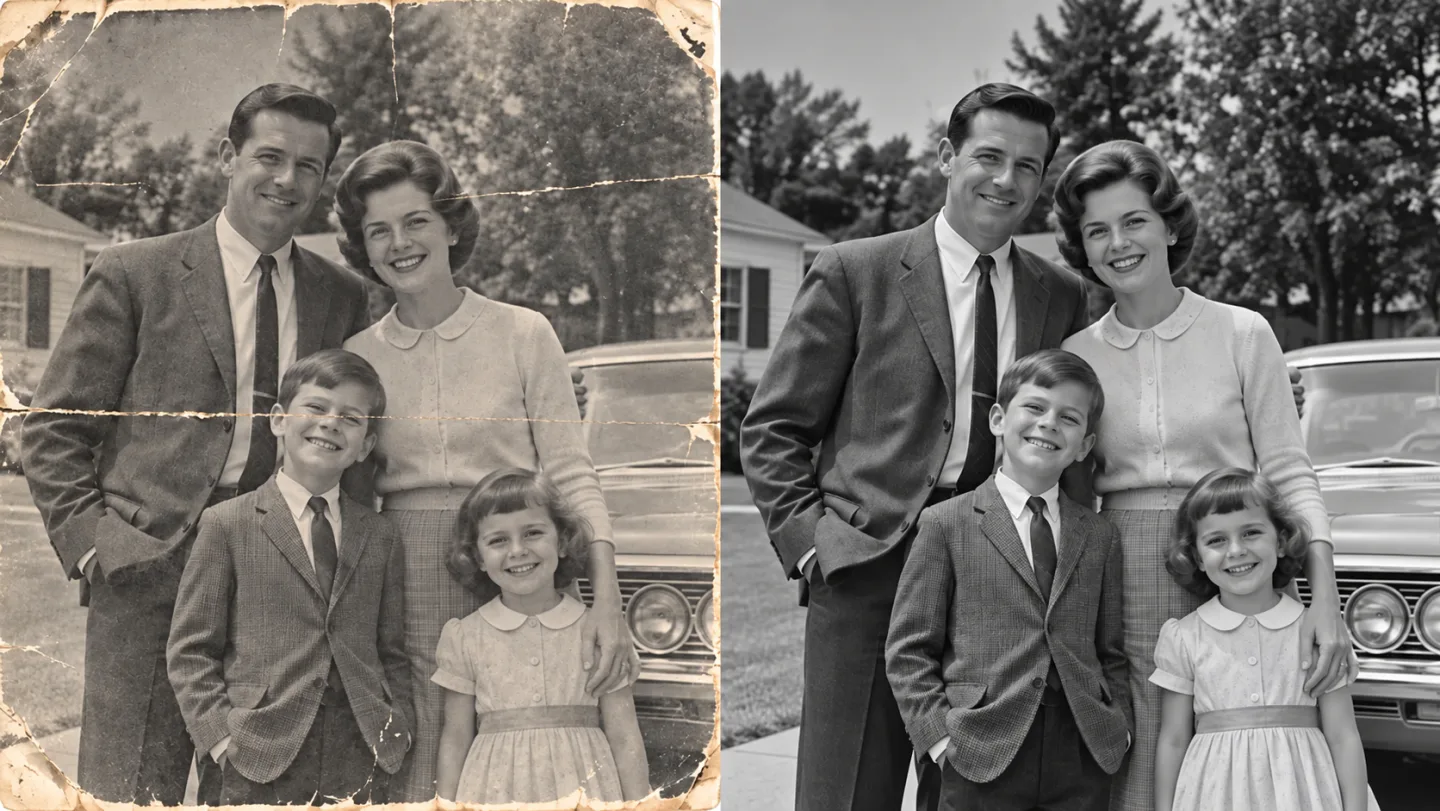
Side-by-side original fictional 1960s black-and-white family photo: left creases scratches fading, right gently restored crisp monochrome same people and framing, no colorization.
AI-generated illustration. Actual results depend on your source and settings.

What You Can Do with AI Photo Restoration

Side-by-side original fictional 1960s black-and-white family photo: left creases scratches fading, right gently restored crisp monochrome same people and framing, no colorization.

Repair Visible Wear in a Scanned Print

Creases and fading can make a family photograph difficult to enjoy. Begin with a flat, evenly lit scan and work on visible damage. Save a separate restored copy so the untouched scan remains available for comparison.

Restore an Old Photograph
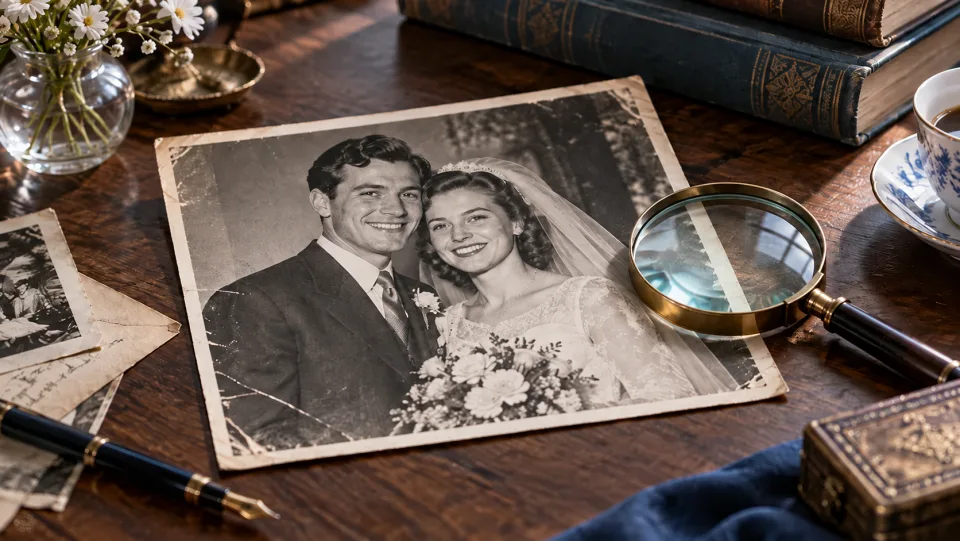
Vintage monochrome wedding photograph gently repaired, archival print on desk beside magnifying glass.

Make a Clearer Copy for a Family Album

An old wedding print can deserve a fresh place in a digital album. Review restored faces, clothing and background details before sharing. Where the source is missing information, reconstructed detail is an interpretation rather than historical proof.

Restore an Old Photograph
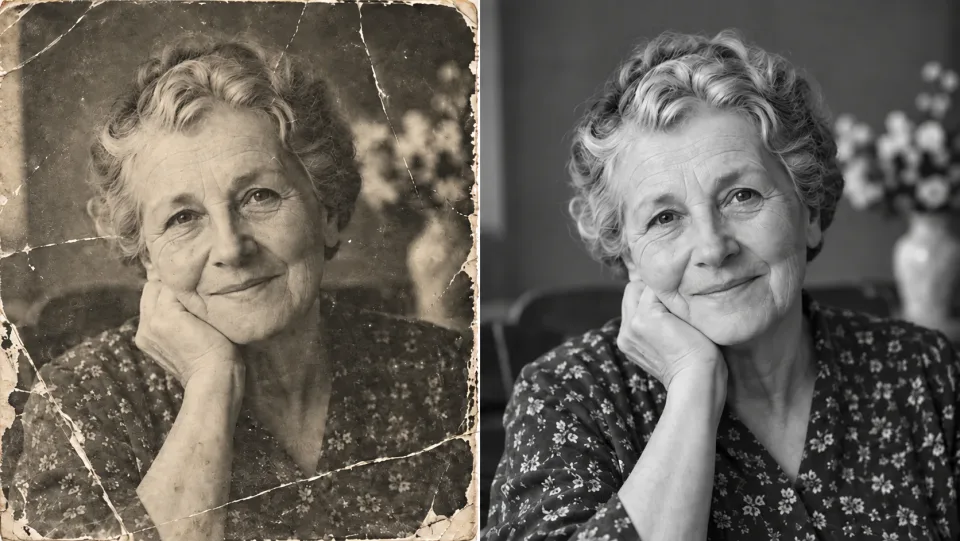
Side-by-side same old monochrome grandmother portrait faded and scratched then restored with authentic age lines.

Let Familiar Faces Stand Out

Faded contrast can obscure the expressions that make a portrait special. Restoration can make remaining information easier to read. Look closely at eyes, smiles and distinctive features; reject a version that changes the person more than it repairs the print.

Restore an Old Photograph
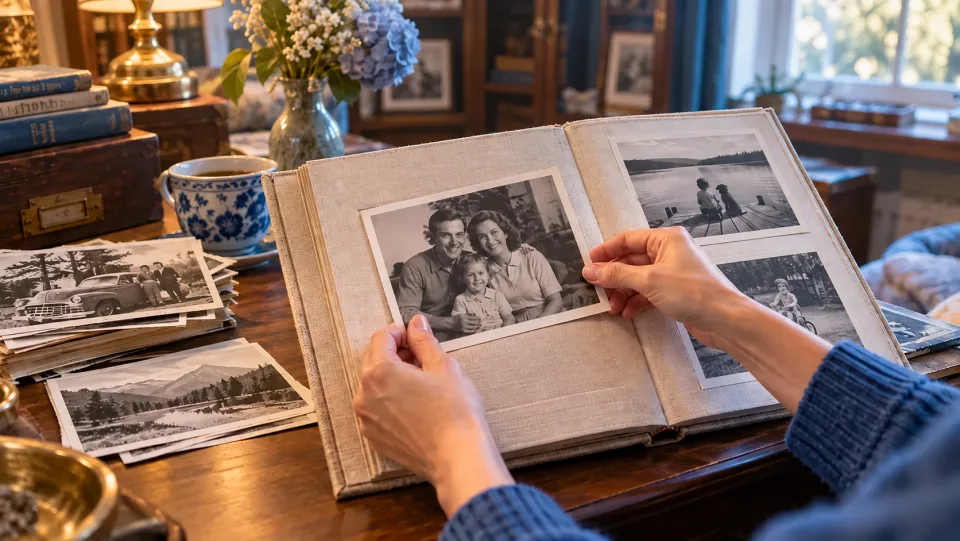
Hands placing restored monochrome family photos into a linen album, warm archive room.

Keep Your Original Beside the Restoration

Store the original scan, restored version and notes together for review with relatives. This page focuses on repair and clarity, not dedicated colorization. Keep a monochrome source when its original color treatment is important to the memory.

Restore an Old Photograph

AI Photo Restoration for Your Next Project

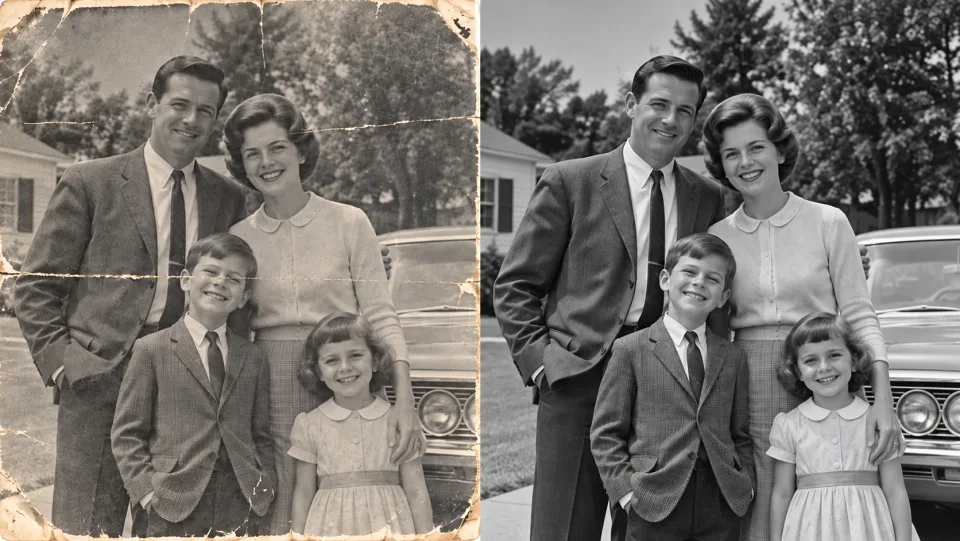
Side-by-side original fictional 1960s black-and-white family photo: left creases scratches fading, right gently restored crisp monochrome same people and framing, no colorization.Family Archivists

Organize a Family Album

Create viewing copies while preserving untouched scans. Ask relatives to help identify names and dates in separate archive notes.

Vintage monochrome wedding photograph gently repaired, archival print on desk beside magnifying glass.Gift Makers

Make a Personal Keepsake

Restore a meaningful print before designing an album page. Check the result at the actual intended print size.

Side-by-side same old monochrome grandmother portrait faded and scratched then restored with authentic age lines.History Enthusiasts

Separate Enhancement from Evidence

Use a restored copy for easier viewing, but keep the source for historical details. Generated texture is not a verified record.

Hands placing restored monochrome family photos into a linen album, warm archive room.Photographers

Start with a Better Scan

Flatten the print and avoid glare. Careful capture preserves more useful information than repeatedly restoring a poor photograph of the print.

How to Use AI Photo Restoration

  1. 1

    Choose Your Source

    Upload a clear scan or photograph of the old print.

  2. 2

    Set Up and Generate

    Review the displayed credits and start photo restoration.

  3. 3

    Review and Download

    Compare the restored image with the original, then download a copy and keep your source scan.

AI Photo Restoration: Common Questions

What does AI Photo Restoration do?

Restore old photos online with Veo3. Reduce scratches, fading and visible damage while creating a clearer digital copy of a treasured photograph.

Can AI restore every damaged photograph?

Results depend on how much detail remains. Light scratches and fading are easier than missing faces or large torn areas. Keep the original because AI may invent details in damaged regions.

Will restoration automatically colorize a black-and-white photo?

This tool focuses on repairing damage and improving clarity. It is not a dedicated colorization workflow, and a specific color treatment is not guaranteed.

How do I get started?

Upload a clear scan or photograph of the old print. Review the displayed credits and start photo restoration. Compare the restored image with the original, then download a copy and keep your source scan.

How much does it cost on Veo3?

This tool uses your Veo3 credits. Check the cost shown in the generator before submitting; the amount depends on the model and settings. Your existing Veo3 plan and credit balance apply.

Are the examples measured results from this tool?

The examples below are AI-generated illustrations of possible uses, not measured outputs from this tool. Your result depends on the source image and generation settings.

What should I check before using the result?

Compare the output with your original at full size. Inspect faces, text, edges and important details, and make sure you have the rights to edit and publish the image.

View Veo3 pricing →

Make Your Favorite Memories Easier to See

Upload your image, review the result, and keep the version that works for your next project.

Restore an Old Photograph