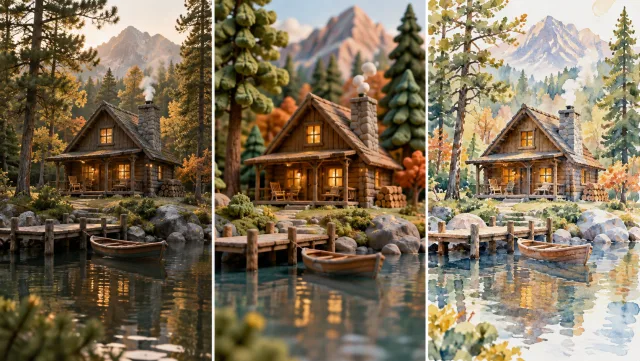
Begin with a Shot You Already Have
Your clip supplies the subject, scene and movement. Use a focused source that clearly shows what you want to keep, then direct the visual change in a short prompt.
Restyle Your Video
Restyle an existing video with Veo3. Upload a clip, describe a new visual direction, and explore an edited version guided by the original scene and movement.
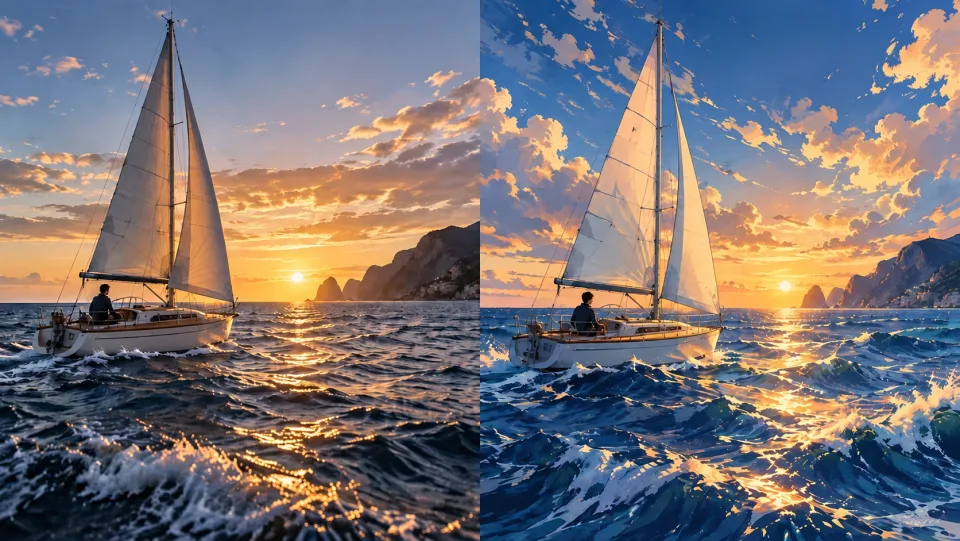
Restyle Your Video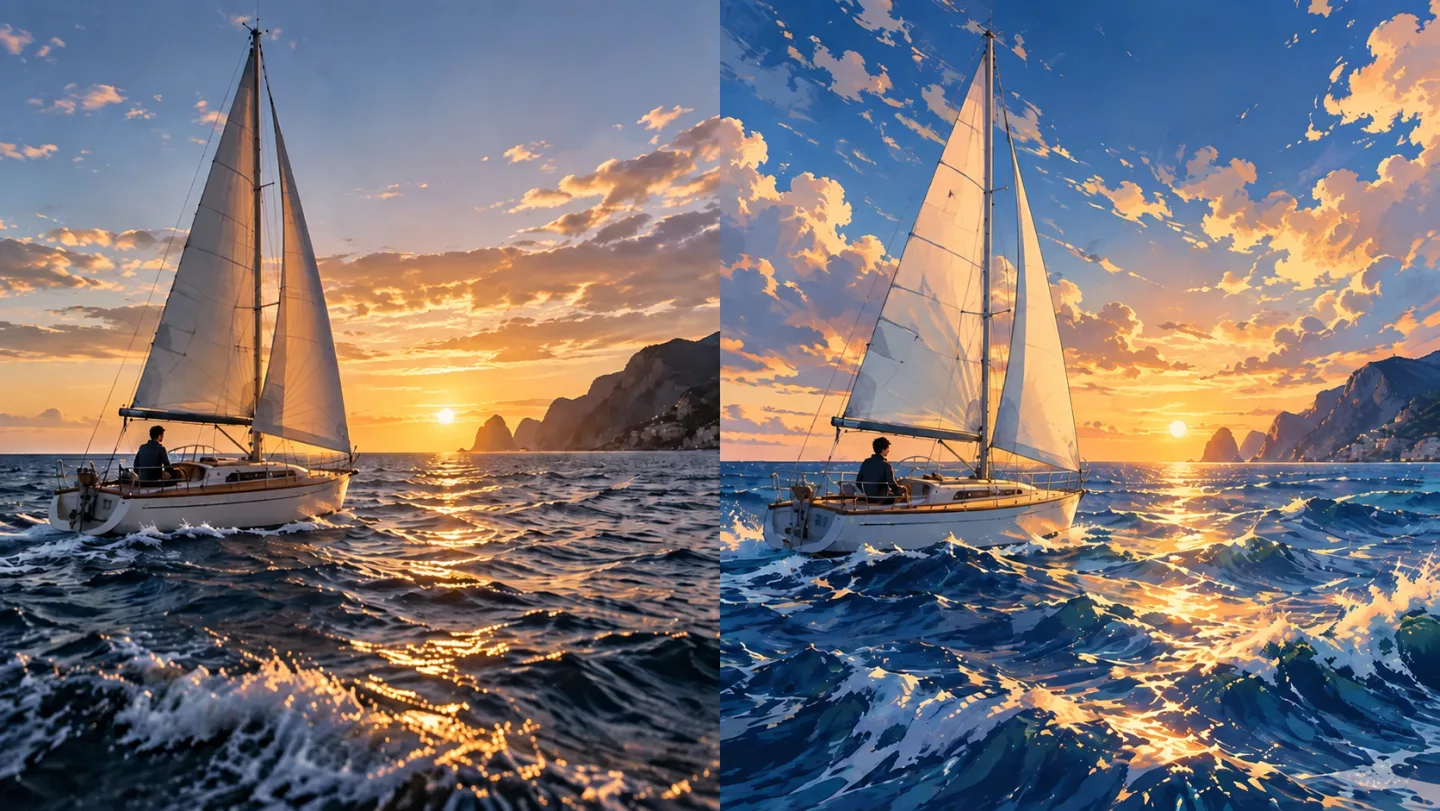
Your clip supplies the subject, scene and movement. Use a focused source that clearly shows what you want to keep, then direct the visual change in a short prompt.
Restyle Your Video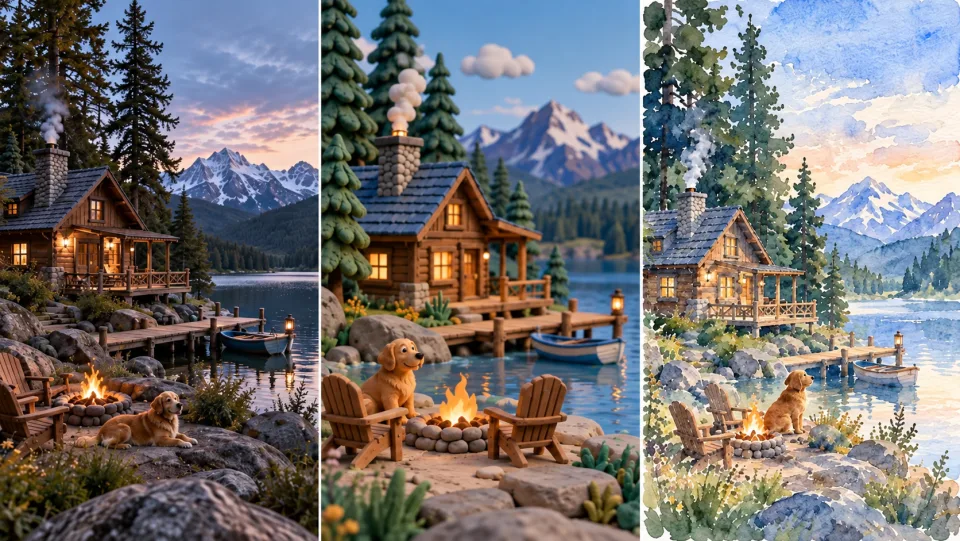
Explain materials, color and lighting rather than asking for a vague improvement. A hand-painted coastal scene and a tactile clay world give the model different, actionable directions.
Restyle Your Video
This page runs an editing workflow instead of creating a new clip from scratch. The source guides framing and timing, while generated details may still vary from frame to frame.
Restyle Your Video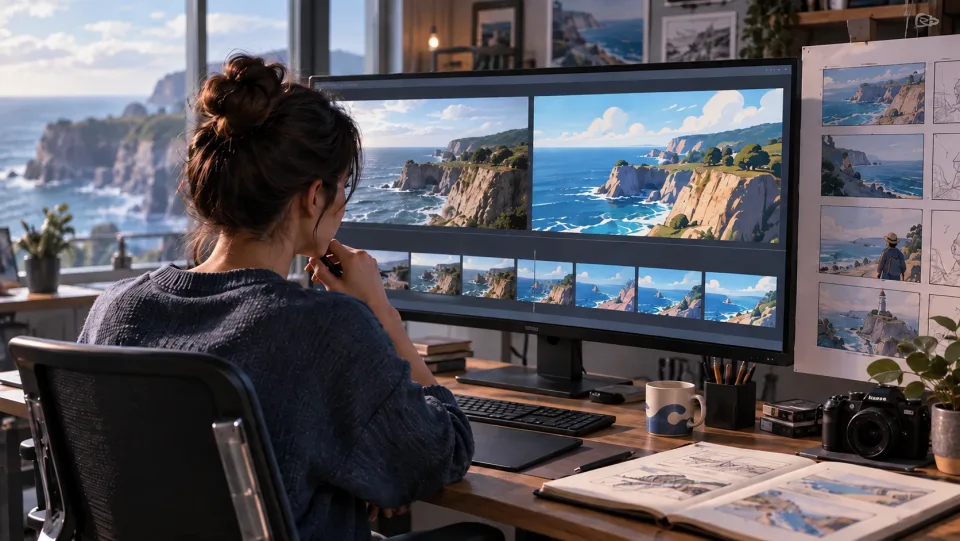
Compare a few intentional variations, select the most consistent take, then finish titles, sound and transitions in your editing workflow.
Restyle Your VideoCreatorsDevelop a new visual treatment for a short scene you already filmed.
DirectorsUse the same reference to explore different materials, atmosphere and color.
Social TeamsTest a consistent style on a small set of source clips.
EditorsGenerate a short treatment to incorporate into a larger sequence.
Choose a compatible model and upload the video you want to transform.
Explain the desired look or edit and what should stay consistent. Check the credit estimate.
Generate, watch for continuity and unwanted changes, and download your selected take.
No. The model regenerates visual content to apply your direction. The workflow uses the source as its timing and framing reference, but faces, textures and motion can still change.
An editing task takes its structure from the uploaded source. The form only exposes settings supported by the selected editing model.
Supported durations and file limits depend on the selected model. Check the form before choosing your source, and start with a short, clear clip for your first test.
Check the credit estimate in the tool before you generate. The selected model and available settings determine the cost. Your existing Veo3 account and credit balance apply.
No. Upload your source or enter your instructions in the browser, generate online, and download the result from your history.
Start with your next idea, review the generated result, and bring the version you prefer into your project.
Restyle Your Video